
Chapter 3: Interface Overview — the four main areas of the app
This chapter gives you a quick tour of Lyra Code's interface so you know what each area does. To configure a model, jump straight to Chapter 8.
Reading time: about 10 minutes.
3.1 AI chat page (your main battlefield)
This is where you'll spend 90% of your time — the window for talking to the AI.
What you'll see:
- The conversation area on top: the message history between you and the AI;
- The input box at the bottom: type here, press Enter to send;
- The action panel at the very bottom: a row of quick buttons to switch provider / model / system prompt (details in Chapter 8, 8.5).
A good first sentence:
Hello! Introduce yourself and tell me what you can help me with.
The AI will reply with a self-introduction. Congratulations — you've just gone end-to-end.
More details on operating the chat page are in Chapter 4 "Chat Basics".
3.2 Dual-pane file manager (your file warehouse)
Open the file manager and you'll see two windows side by side (that's why it's called "dual-pane"), both defaulting to the phone's storage root /storage/emulated/0.
- Independent navigation: pick a folder in the left pane, another in the right, for easy comparison;
- Cross-directory operations: copy/move files from left to right, rename, delete, unzip;
- Web preview: long-press a
.html/.htmfile to preview it in a browser (handy for previewing pages you made).
For beginners
File manager operations are real — deleting is irreversible (unless there's a .bak backup). Double-check the path before operating, and when unsure, ask the AI first.
Note
The file manager is a work-in-progress feature. For heavy file management, use a more mature third-party file manager like MT Manager.
The full guide to having the AI operate files for you is in Chapter 12 "Files & Code Editing".
3.3 Code editor (Sora Editor)
Open a text/code file and you're in the editor:
- Line numbers on the left, handy for locating;
- Syntax highlighting: code is auto-colored (keywords one color, strings another) so it's easier to read;
- In-file search: find keywords in the current file;
- Go to line: jump straight to a line number;
- Word wrap: long lines don't overflow the screen;
- Auto backup: before modifying a file, it automatically creates a
.bakbackup in the same directory (e.g.main.kt→main.kt.bak). If an edit goes wrong, you can restore from the backup — your safety net. Don't delete it.
If a file isn't UTF-8 encoded, the editor warns you — that's a normal notice.
3.4 Agent tools page (AI's toolbox)
This lists all the tools the AI can use (read files, run commands, send email…) and an on/off switch for each.
- Beginners: keep everything on by default;
- Later, turn off tools you don't trust (e.g., if you never want AI touching Root, disable the Root tool).
Each tool is explained in detail in Chapter 11 "Agent Tools".
Interface preview (screenshots from the official README):
| AI Chat | Settings | Agent Tools |
|---|---|---|
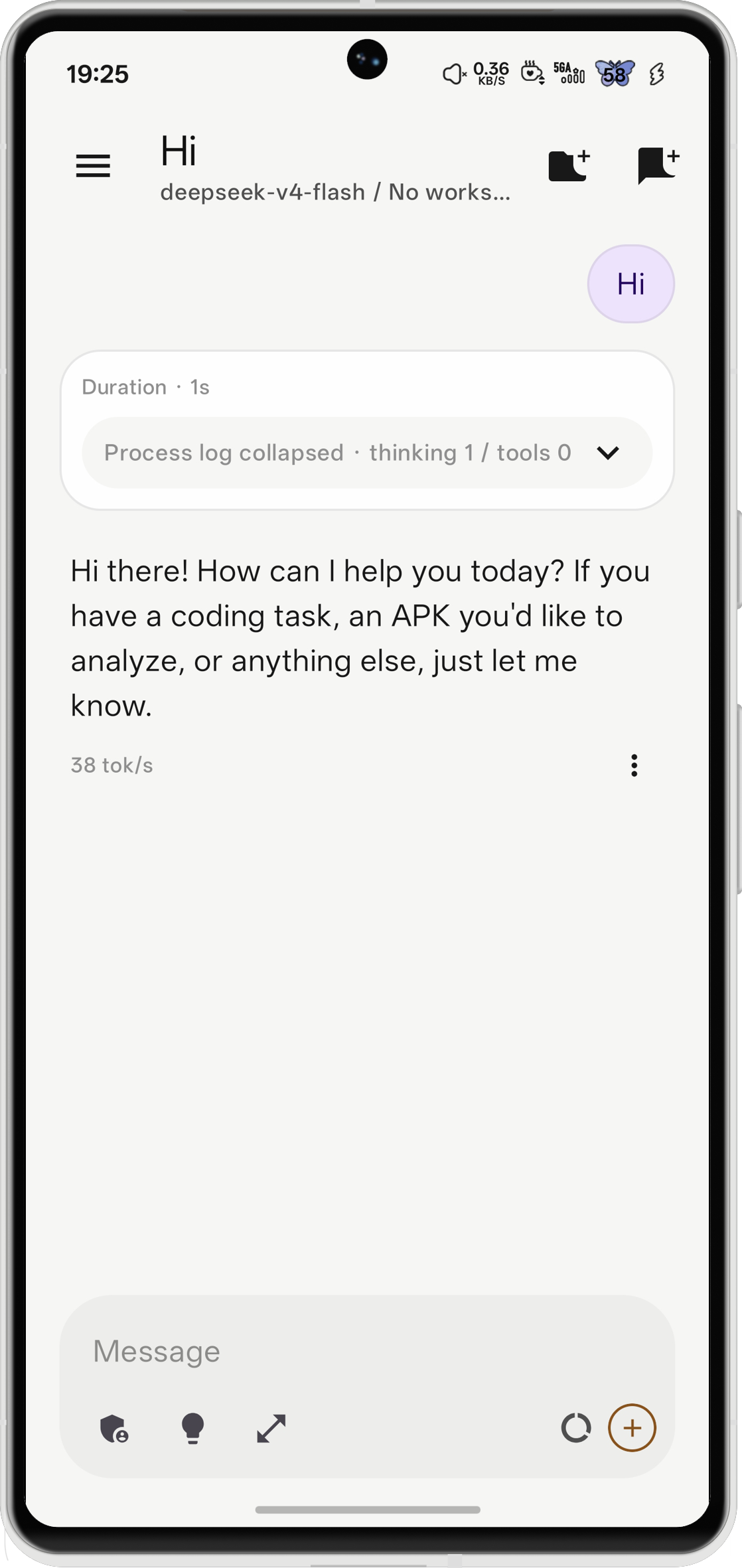 | 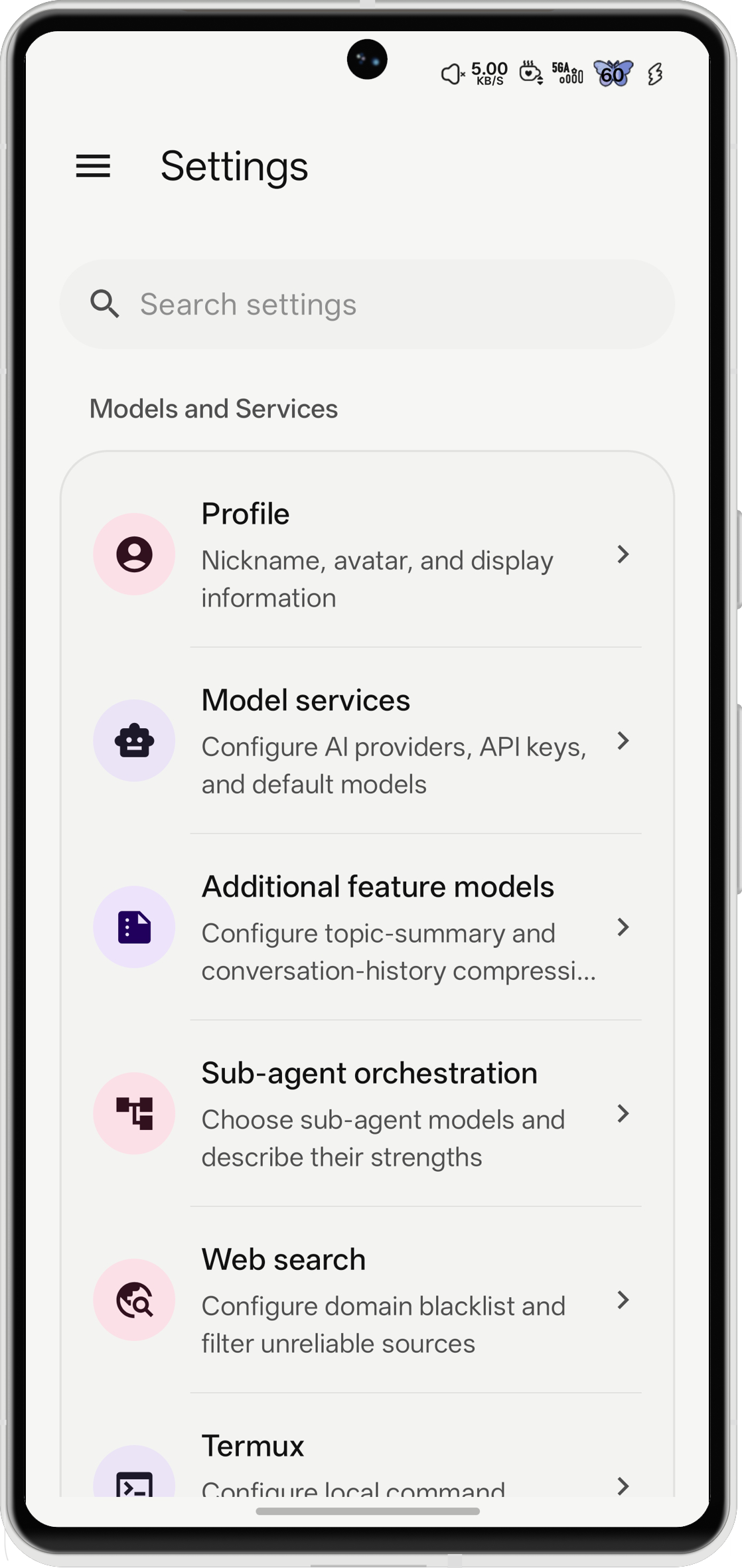 | 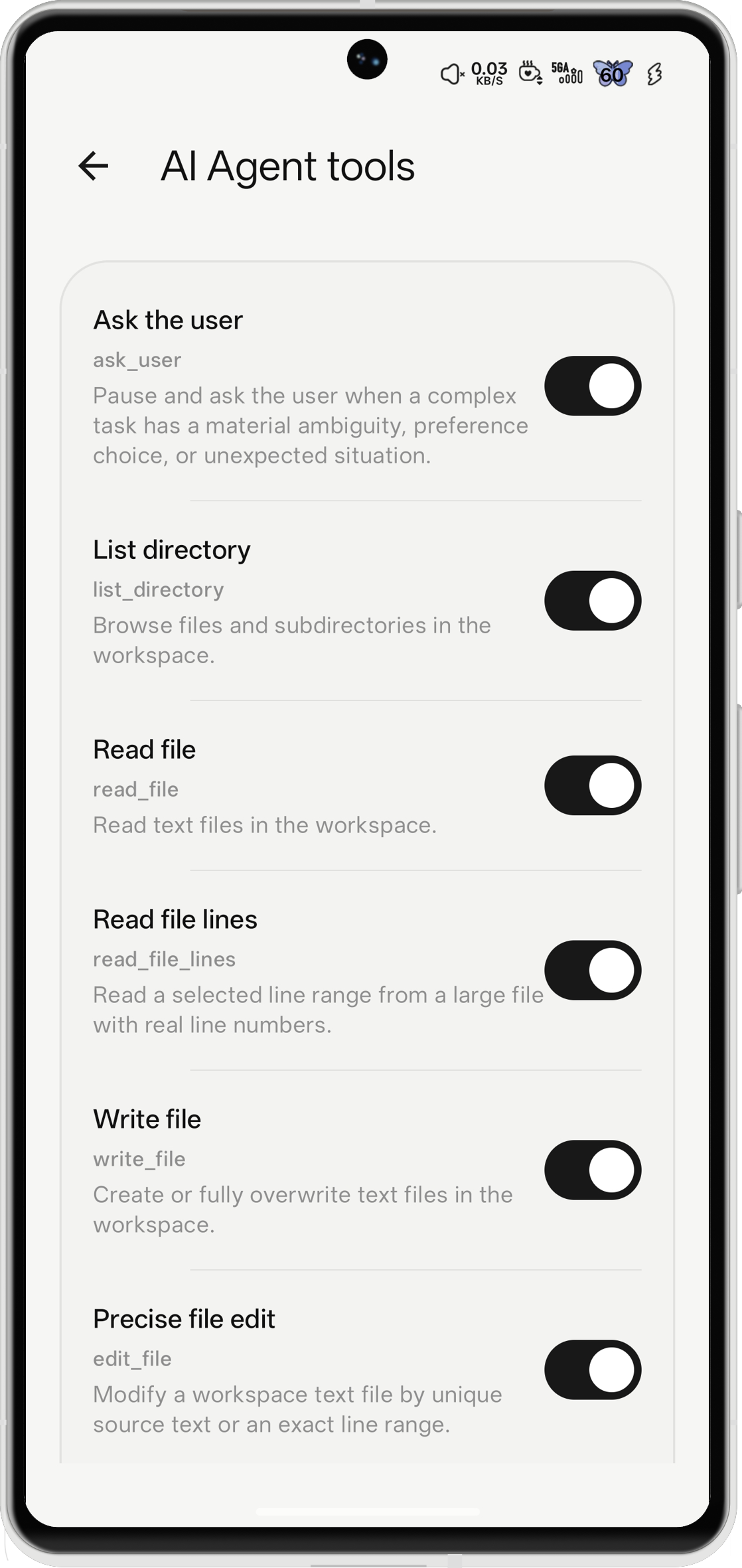 |
3.5 The AI sidebar inside the editor (edit code while chatting with AI)
In the code editor, swipe from right to left to open a dedicated AI sidebar. How it differs from the main chat:
- The AI automatically knows the file you have open and answers/edits that file directly — no need to describe the path;
- You can add project folders so the AI understands the whole project;
- The AI's edits are replayed visually in the document — you can see exactly what changed (green = added, red = removed).
This is the smoothest "look at code while AI edits" workflow — more precise than describing paths in the global chat.
3.6 Quick start in three steps (full version)
- Connect a model: add an AI provider in Settings (how to fill it in — Chapter 8);
- Create a workspace: via the file manager (or ask the AI) create your project folder under
/storage/emulated/0/Lyra; - Start chatting: try "list the workspace contents", "create a TODO", "edit this file" — and watch how it pops up a confirmation before every step. That's the Agent way.
End of chapter · Next: Chat Basics — every detail of the input box, message area and branches